
In this tutorial, you'll learn how to automate the validation and triage of incoming Freedom of Information (FOI) request emails using a supervity agent. This process will help you manage the high volume of emails and streamline your workflow.
Step 1: Introduction to the Supervity Agent
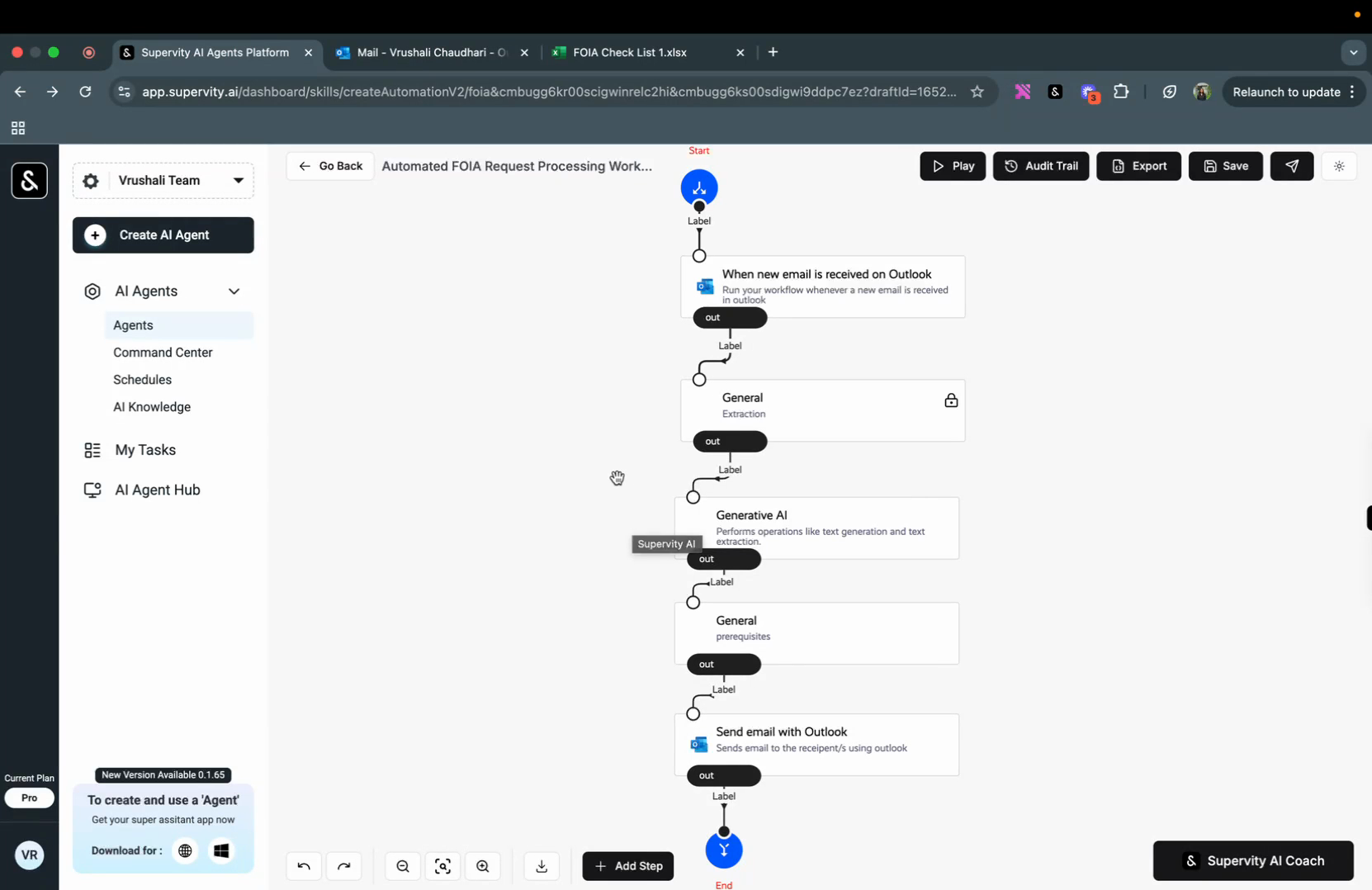
The supervity agent is designed to automate the handling of FOI request emails. It validates and triages these emails, reducing the manual burden of reviewing and responding to them. Let's take a look at the agent's interface.
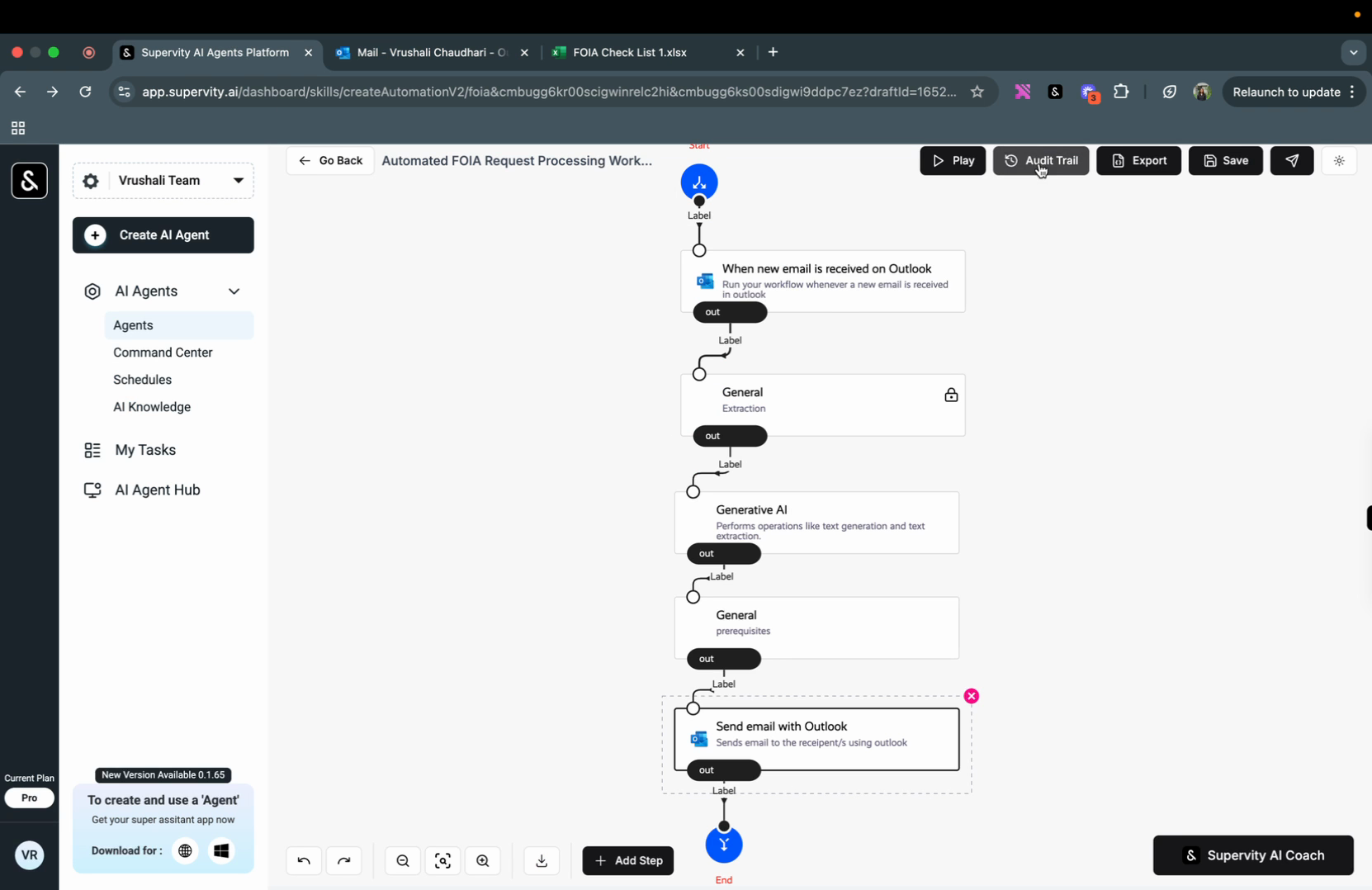
Step 2: Understanding the Workflow
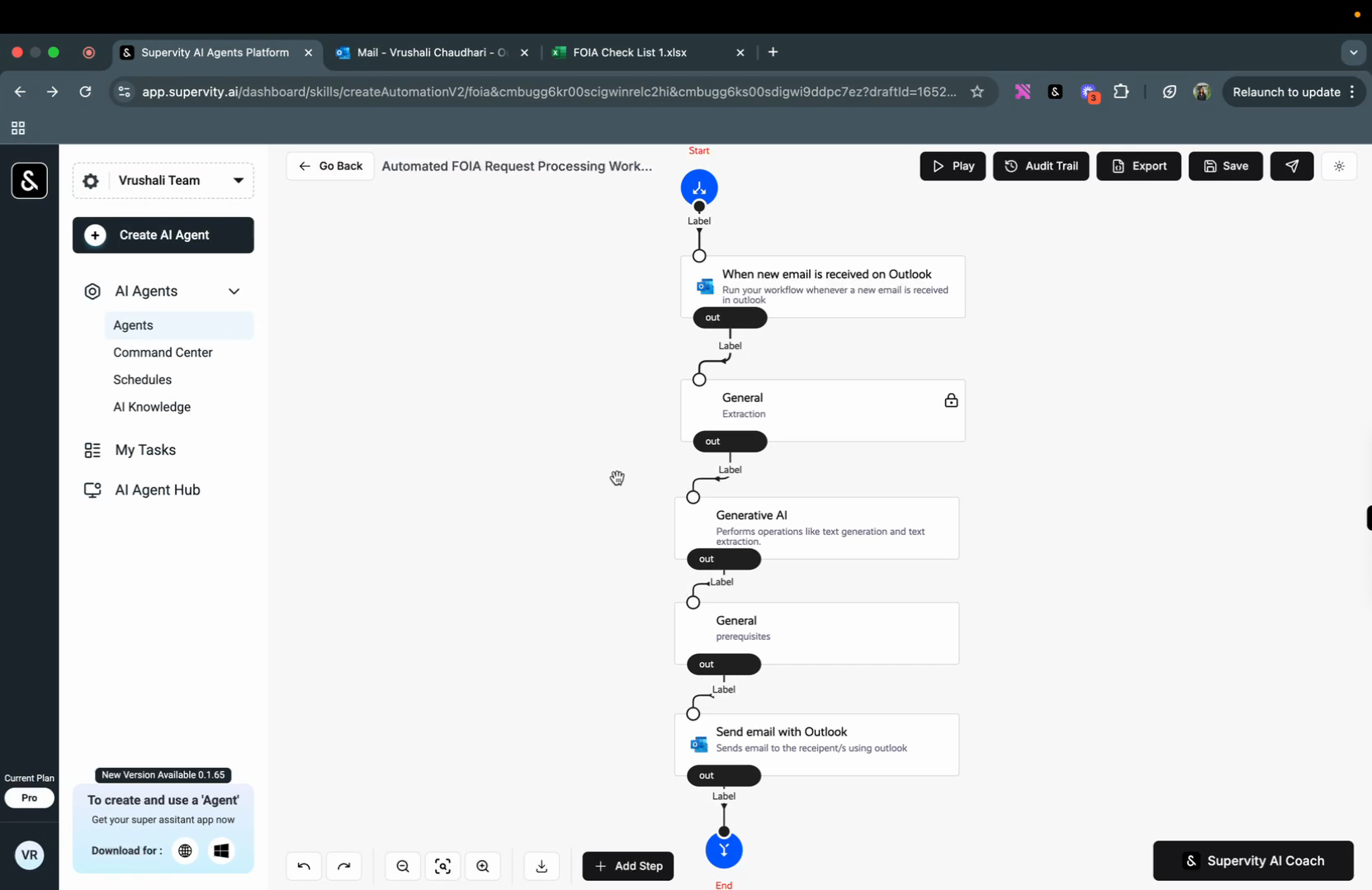
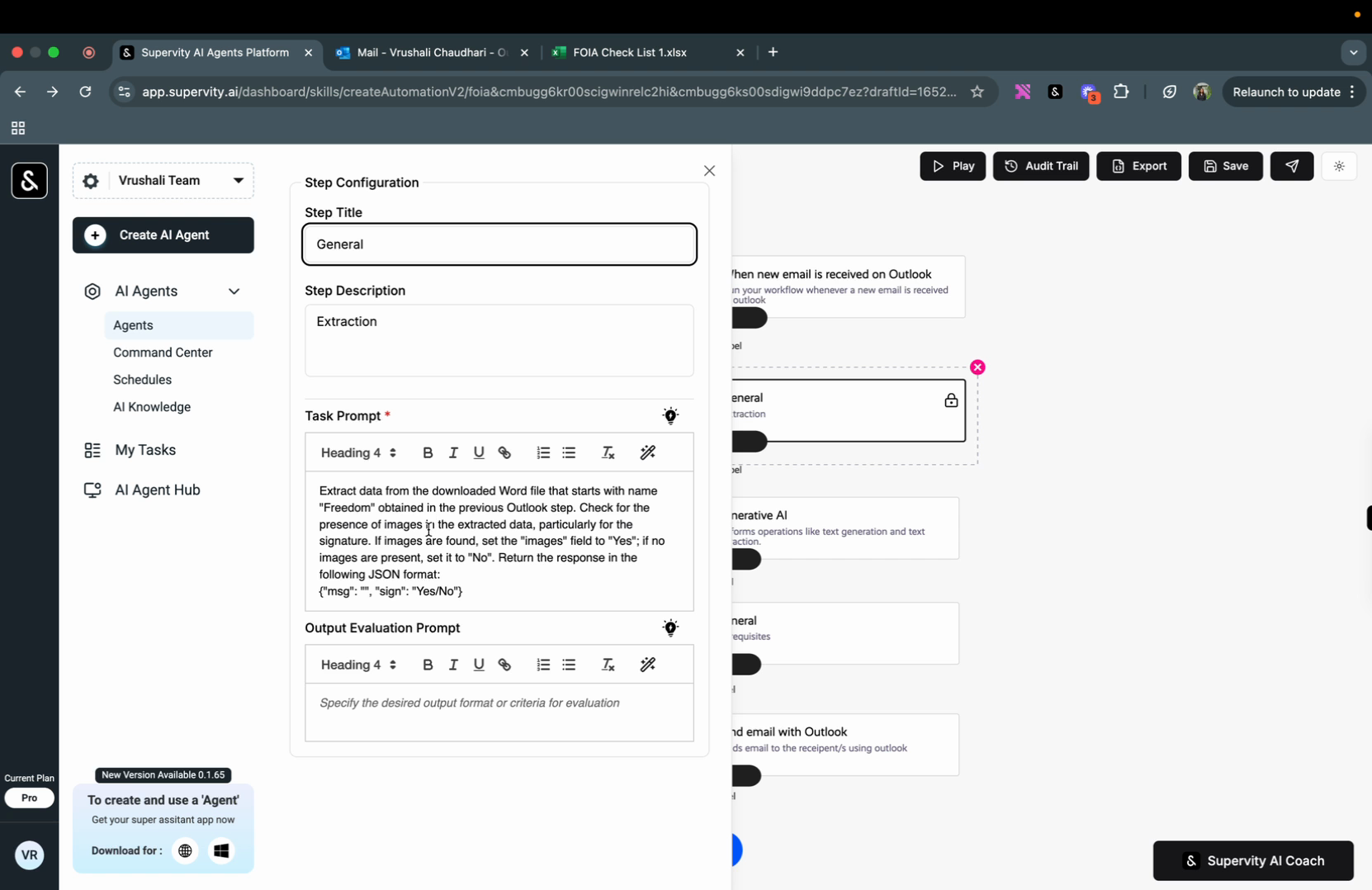
The workflow is triggered automatically when a new email is received in Outlook. For this tutorial, we've chosen a specific folder in Outlook to demonstrate the process. The first step in the workflow is to extract the content from the incoming email, whether it's in the body or an attachment.
Step 3: Validation Process
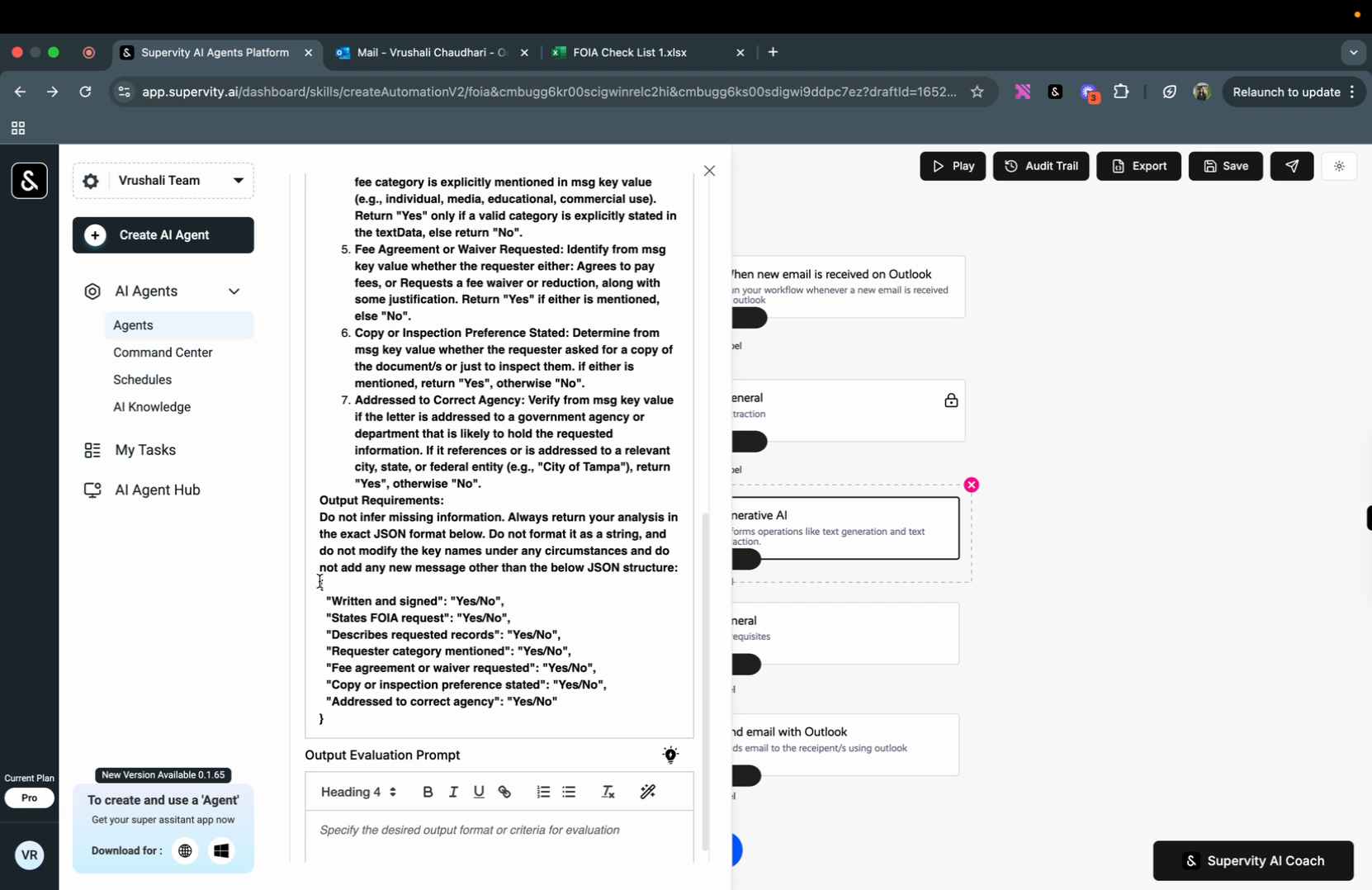
The agent checks for various validation points. It verifies if there are images in the email or attached files, and if they are valid. It also checks if the email explicitly states it's an FOI request, describes the records being requested, mentions the purpose or category (commercial, media, educational, personal, etc.), includes an agreement to pay applicable fees or a request for a fee waiver or reduction, and if it addresses the appropriate agency maintaining the requested records. Here's what the output of this step looks like:
Step 4: Output Formatting
This step is a precautionary measure to extract the output JSON and format it correctly.
Step 5: Response Generation
Based on the previous action's response, the agent decides whether to accept the request and send an email to the user confirming the submission of their FOI request. If the request fails any validations or lacks information, the agent sends an email to the user indicating that their FOI request is incomplete and specifies what information is missing.
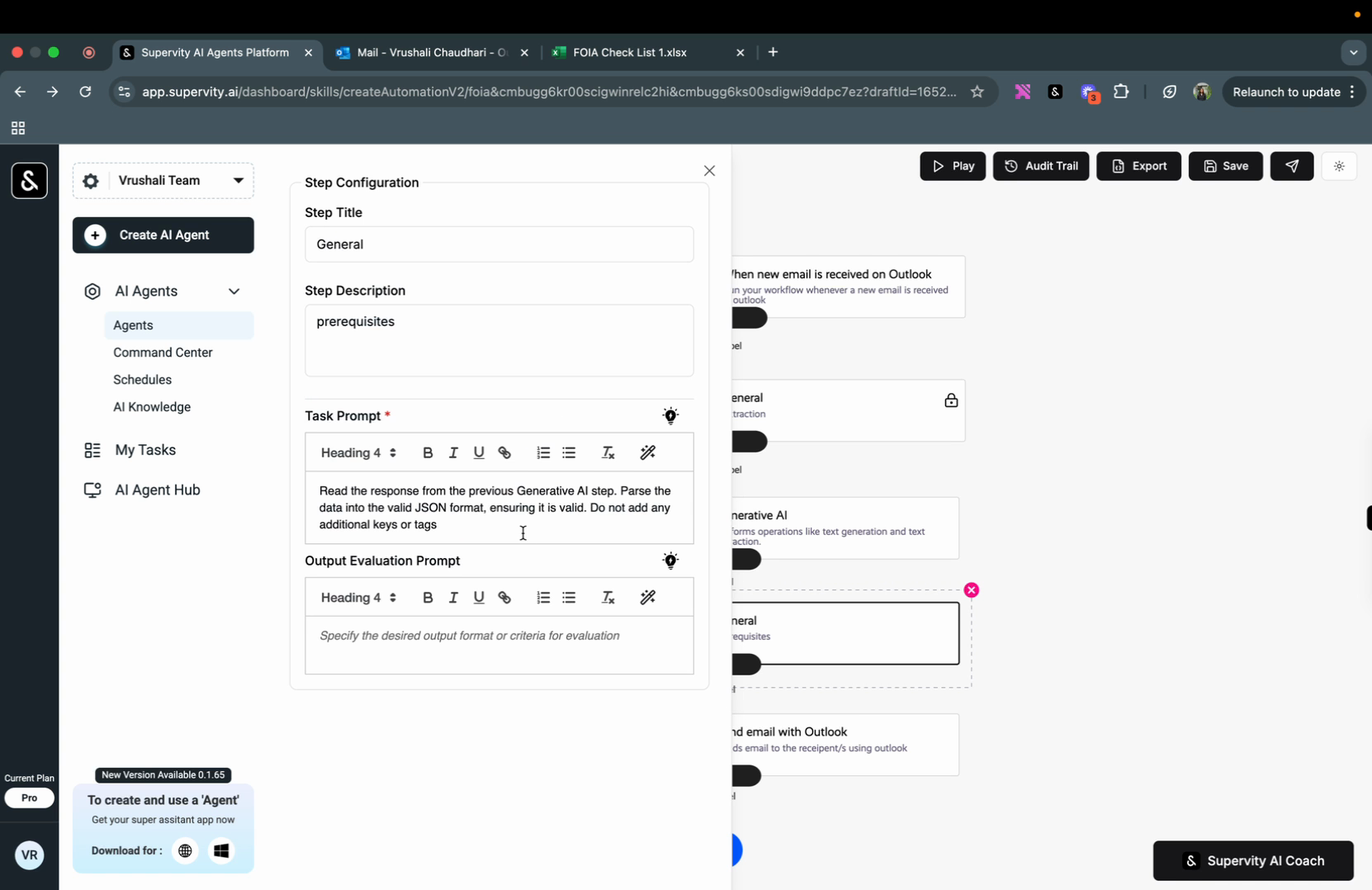
Step 6: Live Demonstration
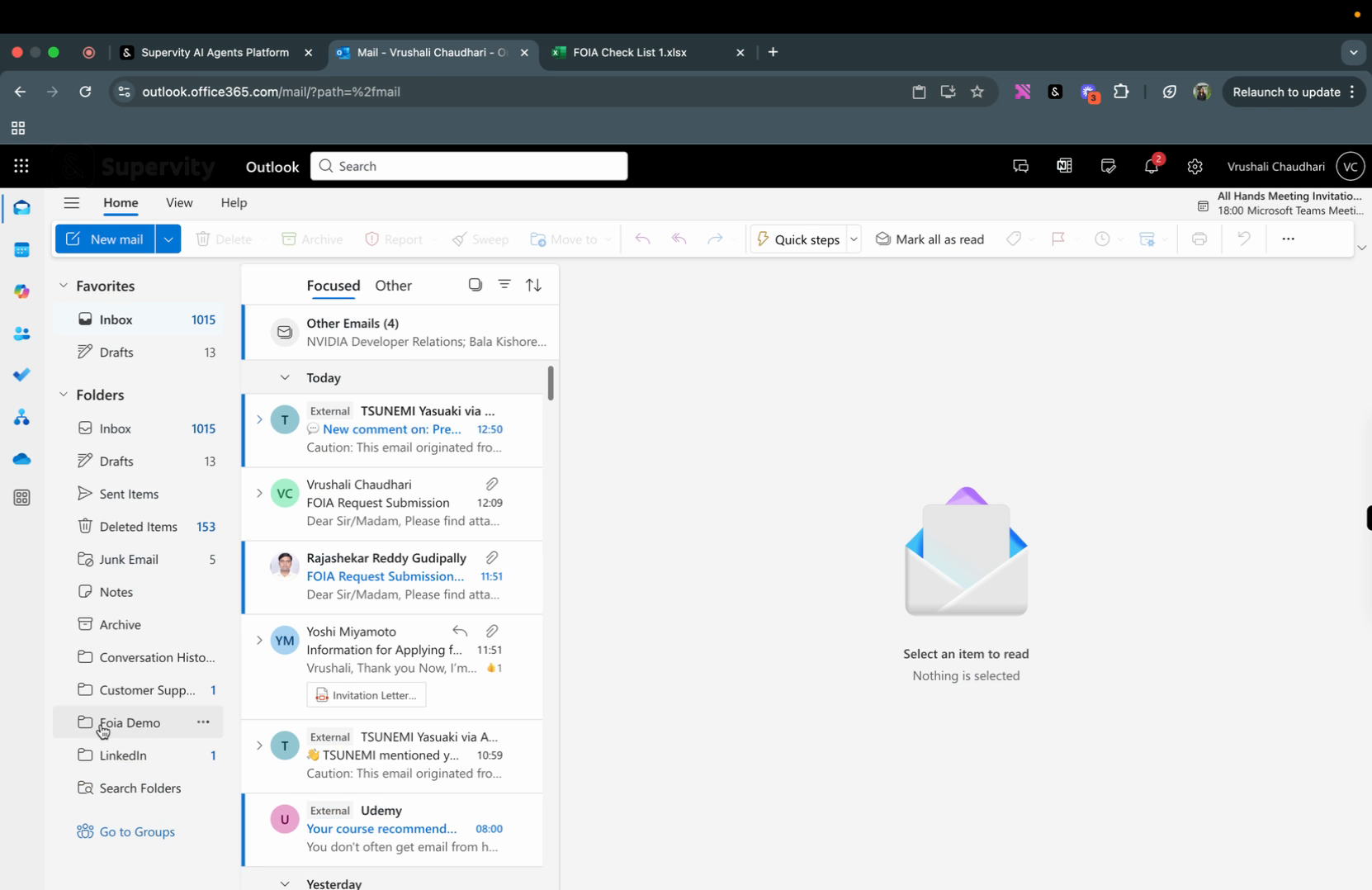
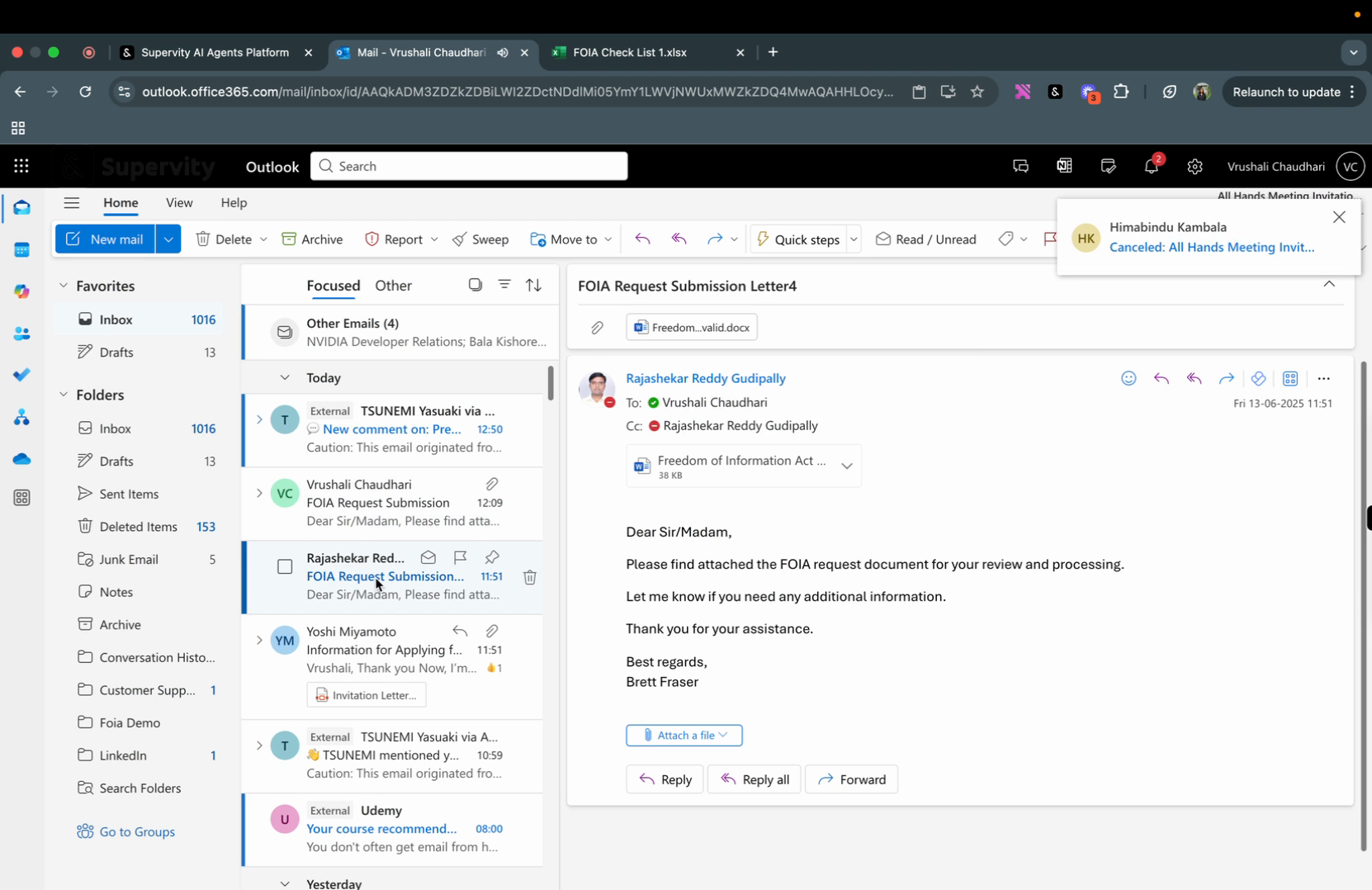
Now, let's run this workflow and see it in action. We've already configured Outlook and created a dedicated folder called "FOI Demo". We'll send an email from Brett Fastener as an example.
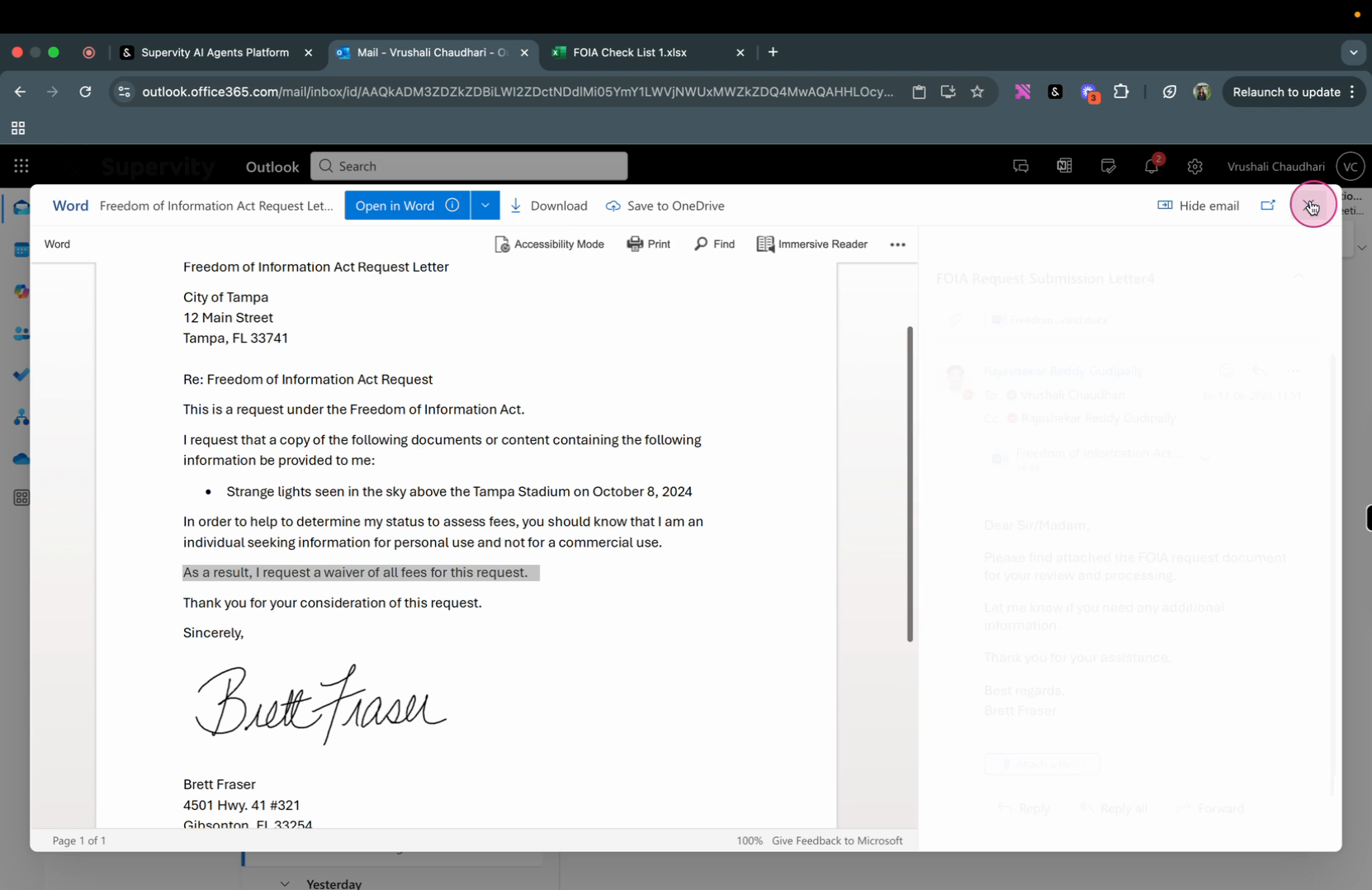
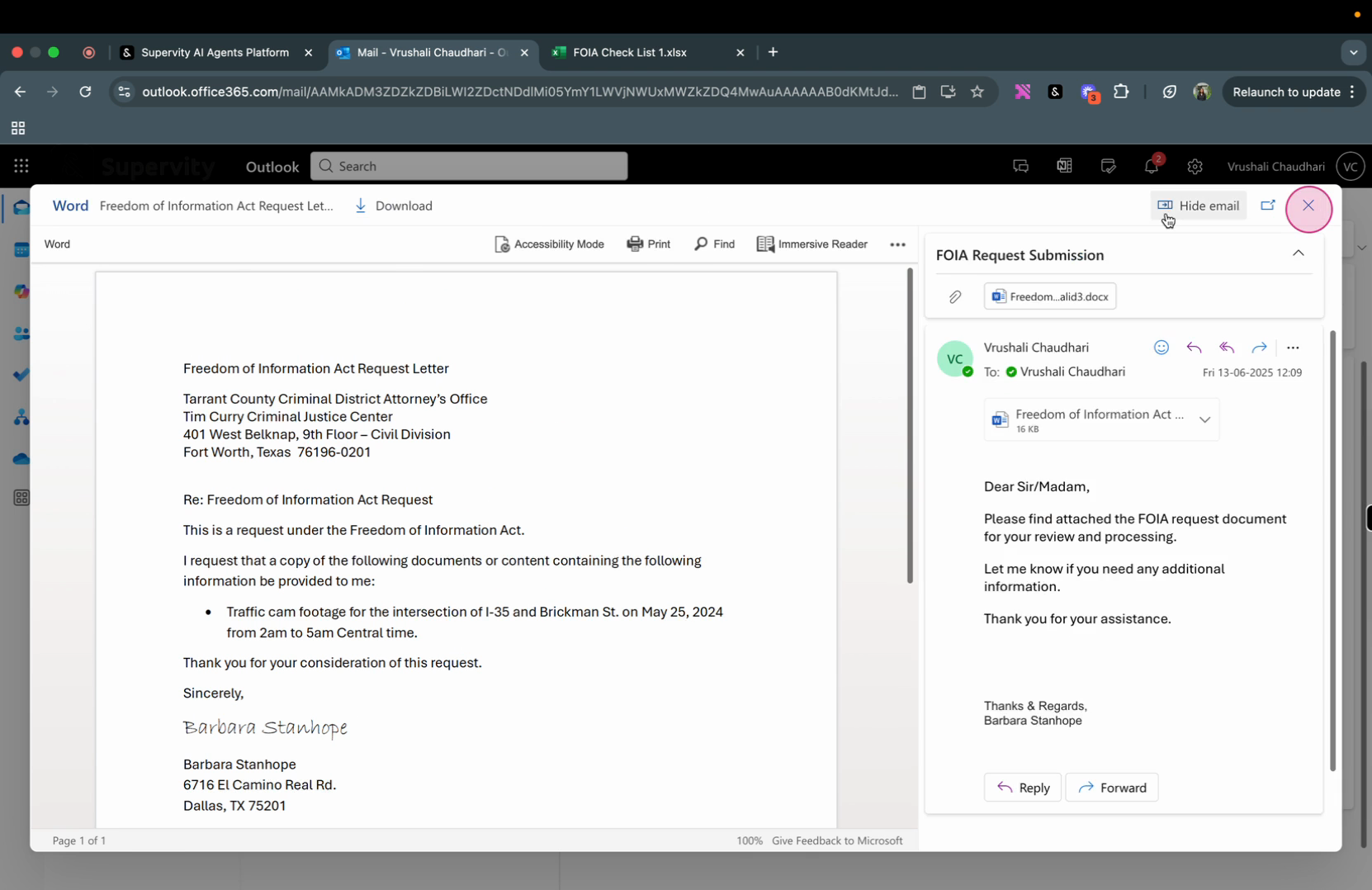
Here's the attachment we'll be sending. It contains all the necessary information for a complete FOI request.
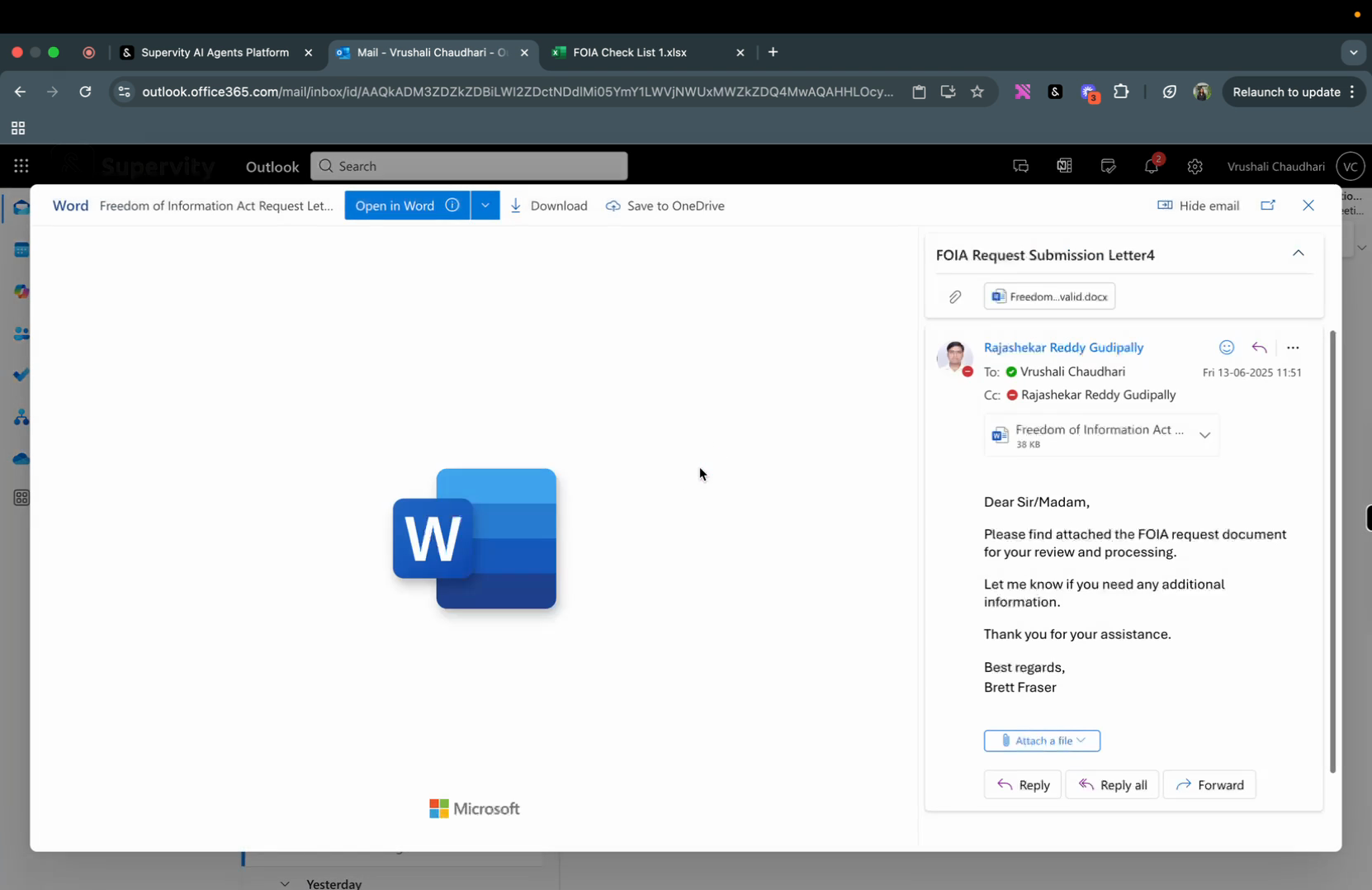
For this demonstration, we're sending the email to ourselves.
Step 7: Audit Trail
You can check the progress of each step in the audit trail. The automation is triggered automatically when we send the email. Each step's status is indicated by color: green for done, red for error, yellow for in progress, and blue for logged.
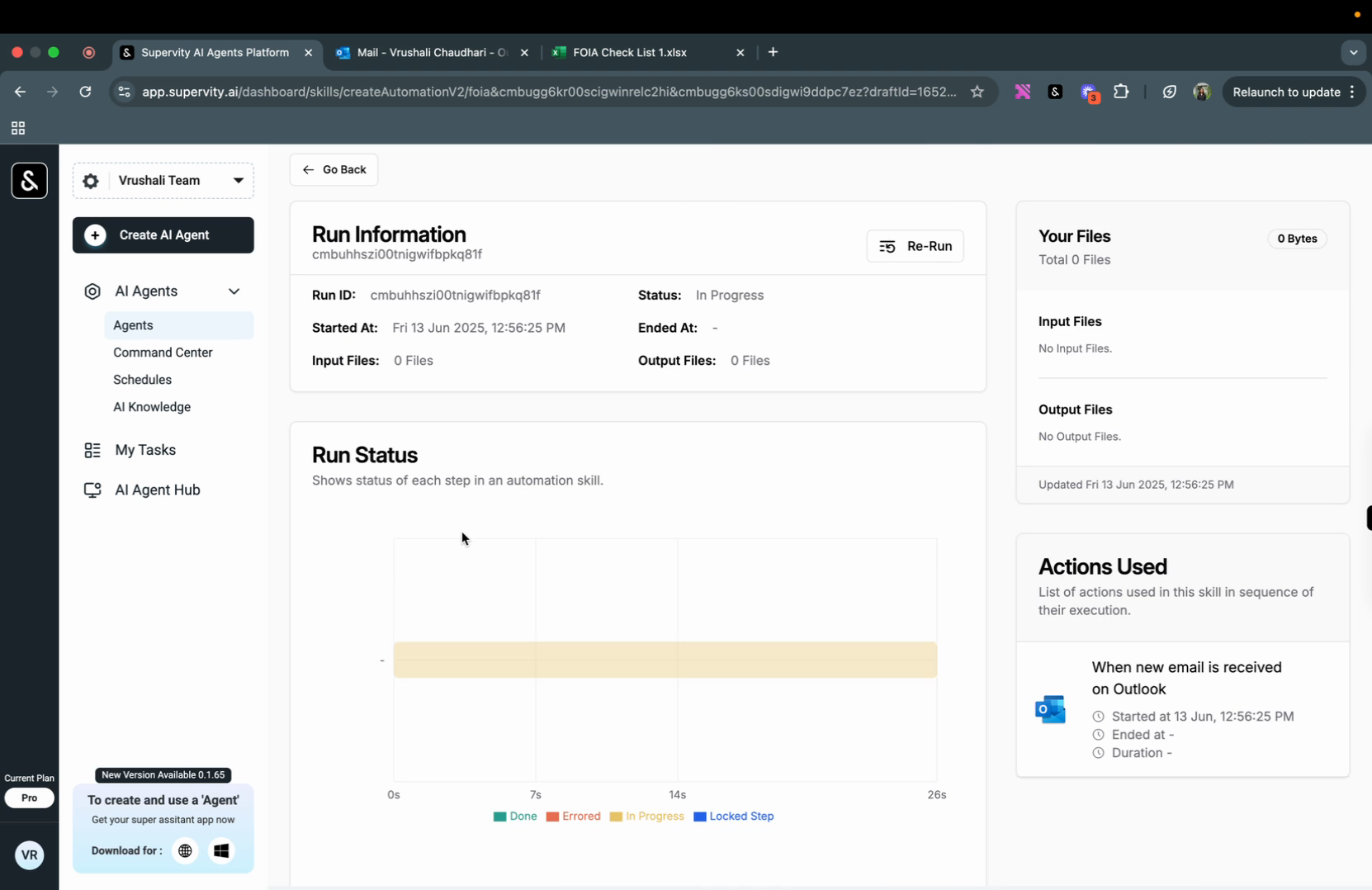
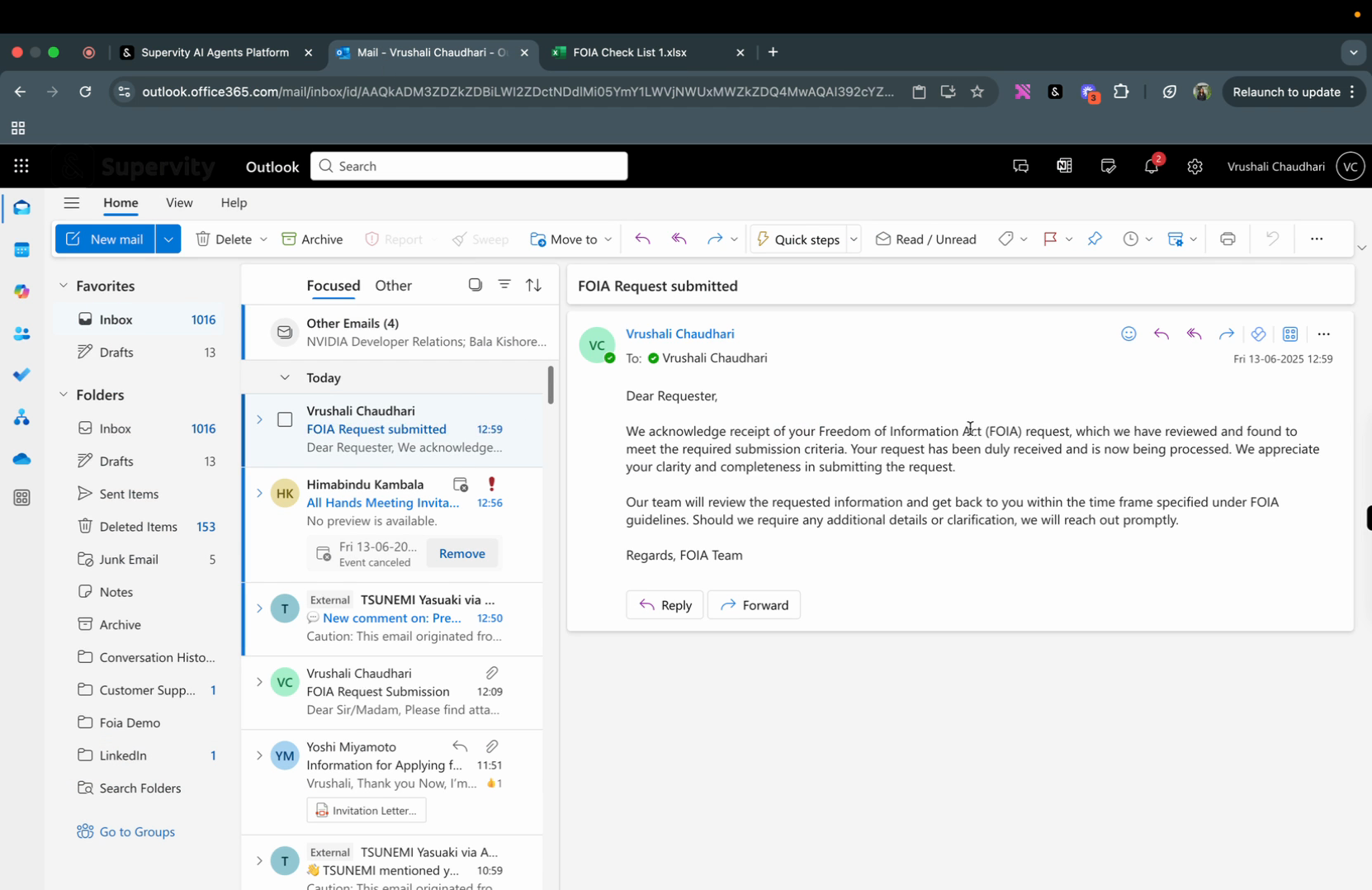
As you can see, all the validations have passed as the email was complete, and the confirmation email was sent. Let's check the email.
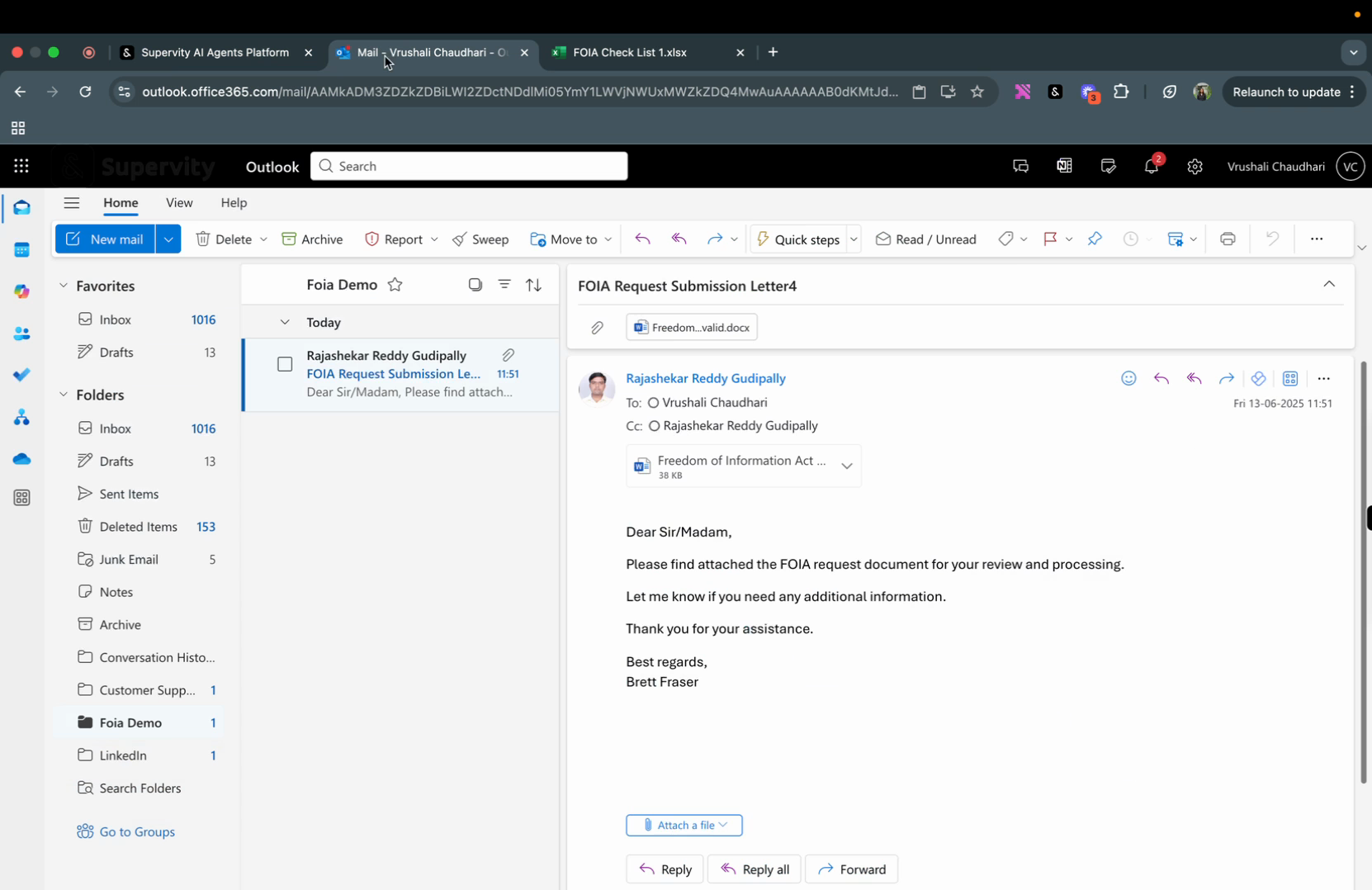
The email confirms that the FOI request has been submitted and meets the submission criteria.
Step 8: Handling Incomplete Information
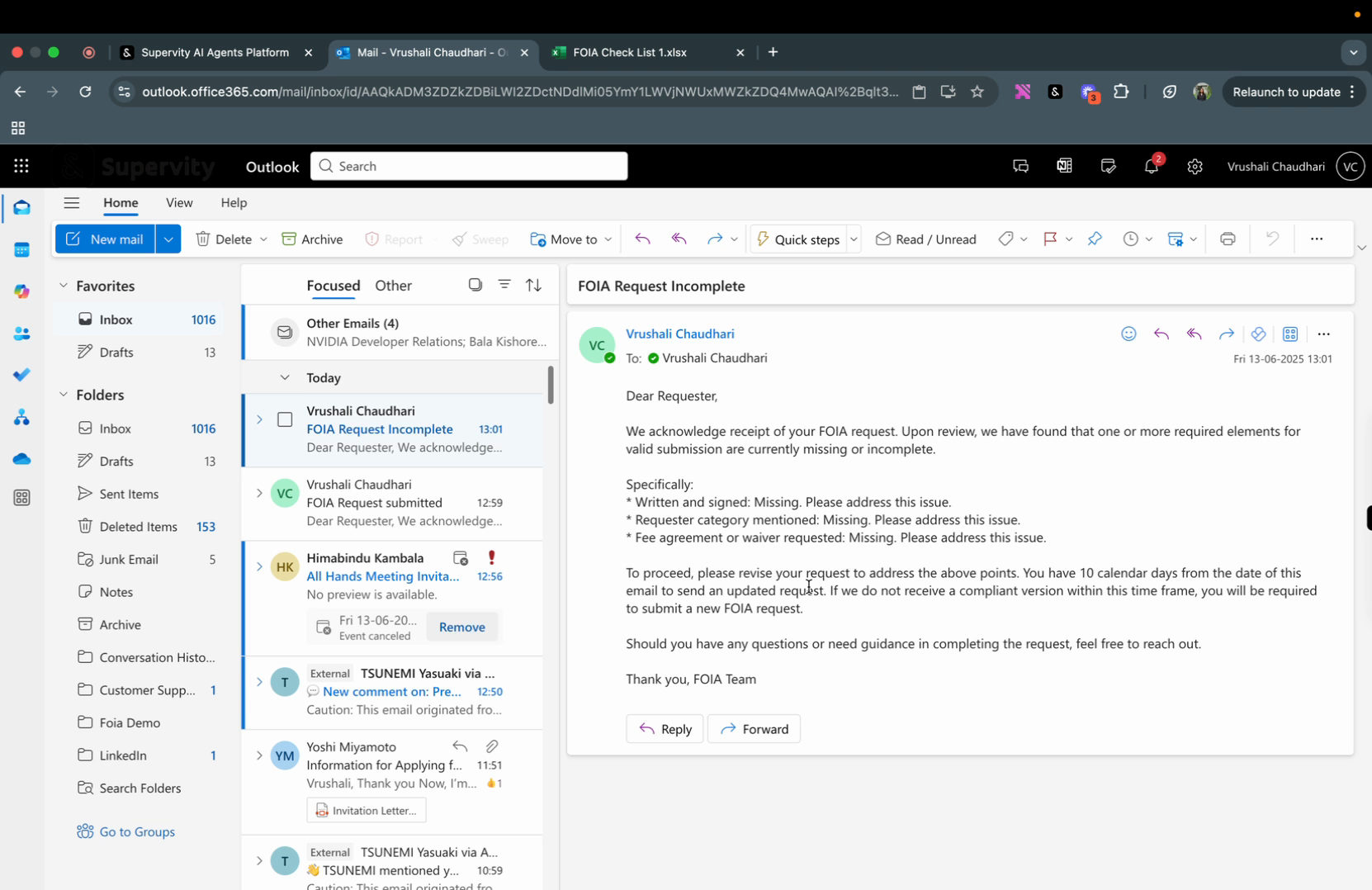
Now, let's send an email with some incomplete information. The agent will identify the missing information and send an email to the user indicating what is missing.
As you can see, the agent identified that the sign was not an image and the category was not mentioned. The user will receive an email indicating these missing elements and will have 10 calendar days from the date of the email to send an updated request.
By automating this process, the supervity agent significantly reduces manual review effort, ensures faster and more accurate handling of FOI requests, and improves transparency and user experience by providing immediate and tailored feedback.
Thank you for following this tutorial. We hope you found it helpful.
Created on
Did you find this article helpful?